
Guide
Signing the shop so customers find things
How signage works in Supermarket Simulator: the category sign as a placed object with its own data and manager, the icon and colour you choose for it, the canvas you set the category on, the categories your products actually carry, and the signs for the entrance and the shop's own status.
Applies to
1.6.0 (223), read from the copy of the game this site was built from (see the sources page)
Before you start
- A shop that is open with at least one sign placed
- Products already stocked in the categories you intend to sign
- Enough money for another sign if you are adding one
Steps
- Put a sign over a group of goods rather than only on one product.
a category sign is its own kind of object with its own data, so a sign names a class of goods instead of a single item - Choose the icon and the colour deliberately, because they are the sign's information.
there are controls for the sign's icon and for its colour, so the look is a setting rather than decoration - Set the category on the sign's own canvas.
there is a canvas for setting a category, which is where the sign is bound to what it names - Treat the sign as an object you can move like any other fitting.
a sign has its own interaction for being used and placed, so a layout change is a matter of moving a sign rather than repainting one - Do not rely on signing a category you do not actually stock.
the categories come from the products themselves, and each entry in a category is its own record, so a sign names goods the shop has - Expect the signs to be kept track of rather than counted by eye.
the signs are held by a manager, which is what lets the game list a shop's signs rather than treating them as scenery - Do not forget the shop's own name where customers arrive.
there is a setter for the entrance name sign, so the way in can carry the shop's name rather than being unlabelled - Check the status sign as well as the category signs.
the shop has a status sign of its own and an animation for opening and closing, so whether the shop is open can be shown rather than inferred - In a shared shop, expect a sign you place to appear for everyone.
signs have a networked form, so a sign put up by one player is put up for the crew - Keep an eye on the name overlay if you rename a category.
a category's name can be drawn on an overlay of its own, so a change of wording is visible rather than hidden in a setting
Common mistakes
- Signing a category the shop does not actually stock.
- Expecting a sign to sort the shelf under it for you.
- Leaving the entrance and the shop's own status unlabelled.
- Forgetting that a sign placed in a shared shop appears for everyone.
Related entries
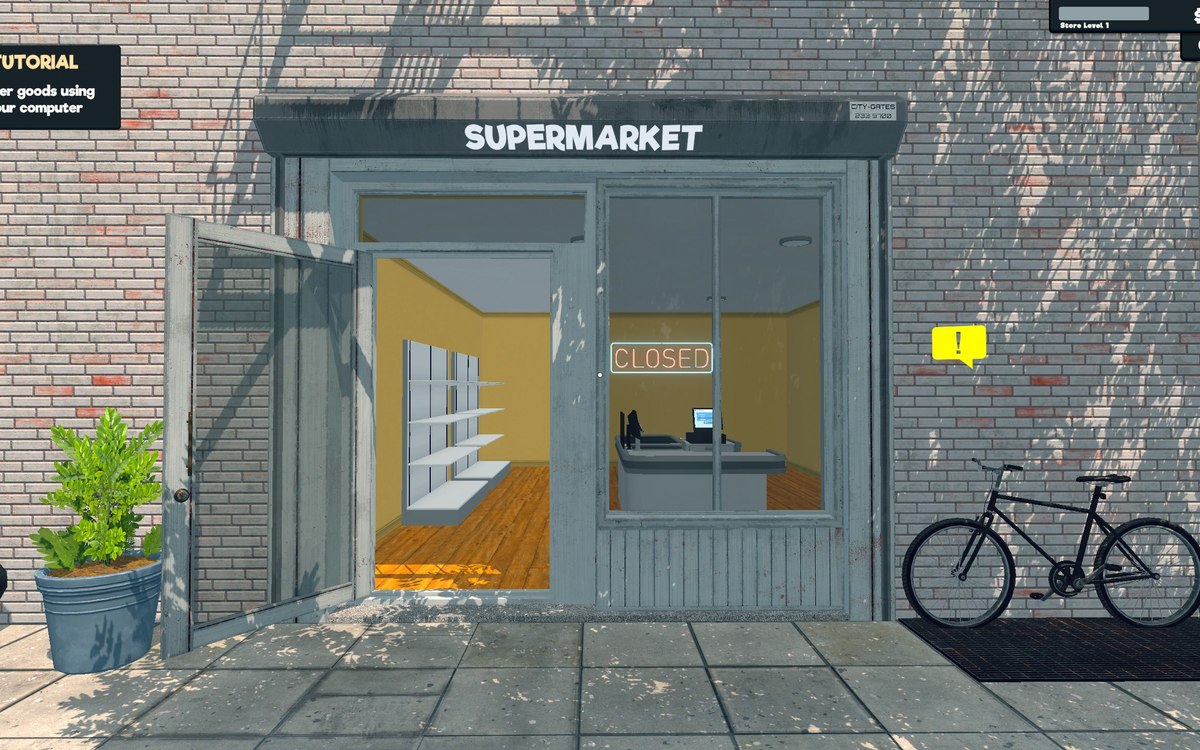 Layout and decorationCategory signs and the categories behind themA category sign is its own object with data of its own.
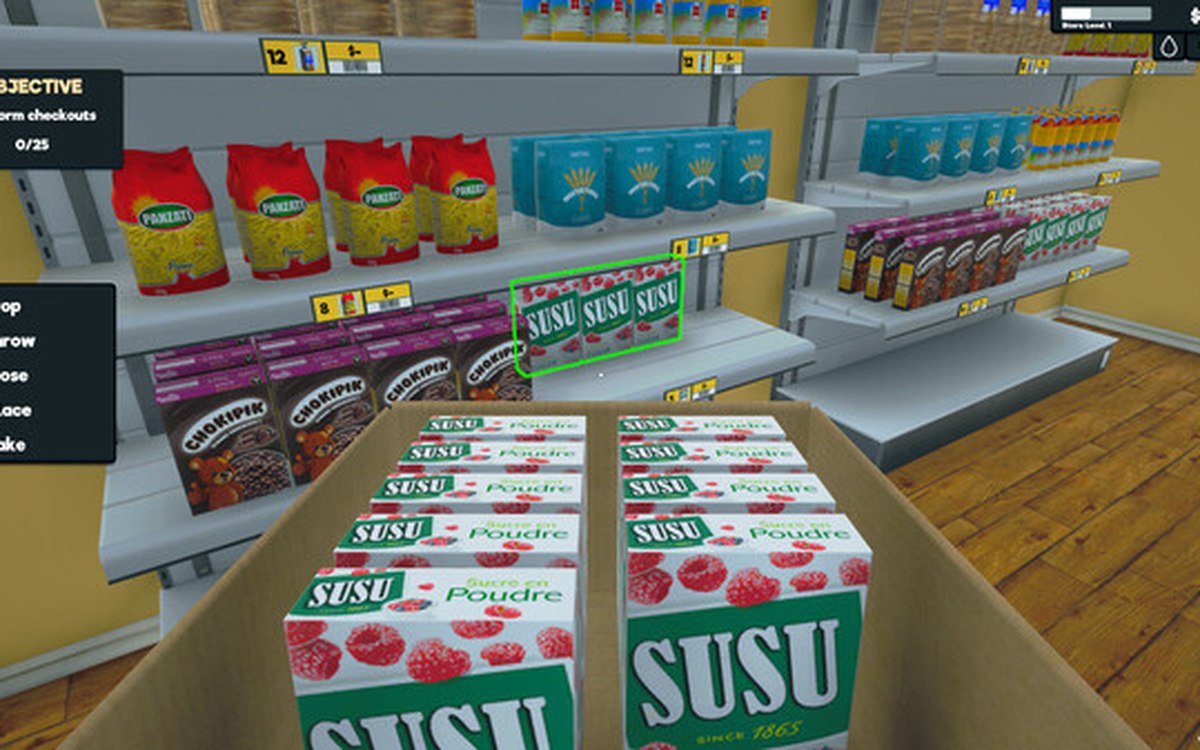 Layout and decorationSigns, labels and organising the shopCategory signs carry an icon chosen from the game's own set.
Related guides
- Keeping the route from the door to the till clear
A layout guide for Supermarket Simulator that follows the route a customer takes: the entrance, the walkable ground the game prepares, the fittings that stand in the way, the shelf approach and the queue at the till.
Sources
A local copy of the game, read only. Grounding for each step is on the technical reference pages; no number is estimated.